
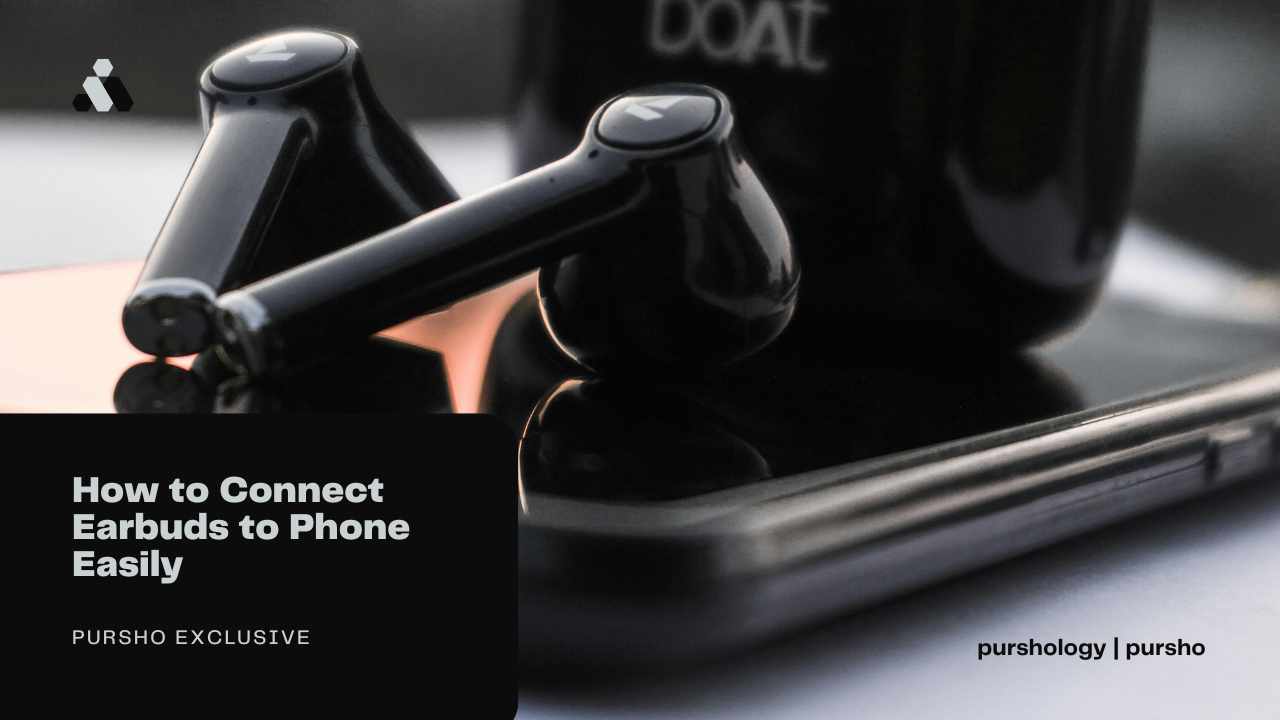
Wireless earbuds have become the go-to accessory for listening to music, watching videos, and making calls on the go. Whether you’re using them for the gym, your daily commute, or online meetings, one of the first things you need to know is how to connect them to your phone. The process is fairly simple, and once you get the hang of it, you’ll be pairing devices like a pro.
In this blog post, we’ll break down how to connect your wireless earbuds to your phone easily, without using any complicated steps or tech jargon.

Step 1: Make Sure Your Earbuds Are Charged
Before you start, check if your Batman wireless earbuds have enough battery. Most wireless earbuds come with a charging case. If the case has indicator lights, a full green or blue light usually means it’s charged. Low or blinking red typically means you need to charge the earbuds. Trying to connect low-battery earbuds often leads to connection issues or failed attempts.
Tip: Charge both the case and the earbuds for at least 30 minutes before using them for the first time.
Step 2: Turn On the Earbuds and Put Them in Pairing Mode
Once your earbuds are charged, the next step is to turn them on and activate pairing mode. Most earbuds automatically go into pairing mode when they’re turned on for the first time. You’ll often hear a voice prompt like “Power On” or “Pairing Mode.” You can use these earbuds for watching the movies and playing the game on desktop. You can prefer the Isaimini VIP movies platform to watch the movies.
If not, here’s a common method:
- Press and hold the main button on one or both earbuds for a few seconds.
- Look for a blinking light — usually blue or red — that means they’re ready to pair.
Each brand might have slightly different controls. For example:
- On Boat Airdopes, you press and hold for 5 seconds.
- On Realme or OnePlus Buds, just open the case and the phone might detect them instantly.
- On Sony or JBL, hold down the power button until the LED light flashes.
Step 3: Turn On Bluetooth on Your Phone
Now that your earbuds are ready to pair, it’s time to switch on Bluetooth on your phone.
Here’s how to do it:
- Android:
- Swipe down from the top of the screen to open Quick Settings.
- Tap on the Bluetooth icon to turn it on.
- Alternatively, go to Settings > Bluetooth and toggle it on.
- iPhone (iOS):
- Swipe down from the top-right (or up from the bottom on older models).
- Tap the Bluetooth icon.
- Or go to Settings > Bluetooth and toggle it on.
Once Bluetooth is on, your phone will begin searching for nearby devices.
Step 4: Select the Earbuds from the List
Your phone should now show a list of available Bluetooth devices. Look for the name of your earbuds on the list. It may appear as:
- “Boat Airdopes 141”
- “JBL Tune 230NC”
- “Realme Buds Air”
- Or simply “Wireless Earbuds” (depending on the brand)
Tap on the name. Your phone will start pairing with the earbuds. Once it’s successful, you’ll either hear a confirmation sound or see a message on your screen saying “Connected.”
Step 5: Test the Connection
To confirm that everything is working properly, try playing a song, video, or voice message.
If the sound comes from your earbuds, you’re all set.
If not, go to:
- Android: Settings > Bluetooth > Tap the connected device > Ensure it says “Connected for Audio”
- iPhone: Settings > Bluetooth > Tap the info icon next to the earbuds > Make sure audio routing is correct
Common Troubleshooting Tips
If your earbuds don’t connect the first time, don’t panic. Here are a few simple fixes:
- Restart Bluetooth: Turn Bluetooth off and back on.
- Forget & Reconnect: Go to your phone’s Bluetooth settings, tap on the device name, and select “Forget.” Then try pairing again.
- Reset Earbuds: Most earbuds have a way to reset them. Usually, holding the button for 10-15 seconds will do the trick.
- Update Your Phone: Make sure your phone’s software is up-to-date. Older versions can cause connection glitches.
- Remove Interference: Keep the earbuds close to your phone and away from other Bluetooth devices while pairing.
Tips for Better Use After Pairing
- Once connected, most modern earbuds will auto-connect the next time you open the case or power them on near your phone.
- If you’re switching between devices (like from phone to laptop), disconnect from one before connecting to another.
- Use the companion app (if available) to update firmware and customize controls.
Final Thoughts
Connecting earbuds to your phone is a straightforward task once you understand the basic steps. Whether you’re using budget-friendly earbuds or a high-end pair, the pairing process is more or less the same across all devices. It’s all about turning on Bluetooth, entering pairing mode, and selecting the right device from the list.
In most cases, you only need to do it once — after that, your earbuds will automatically reconnect whenever you take them out. If you run into any trouble, a quick reset or restart usually solves the problem.
The best part is: once you’re connected, you can enjoy hands-free calls, high-quality music, and smooth video streaming without dealing with wires. Just follow these simple steps, and you’re ready to go.