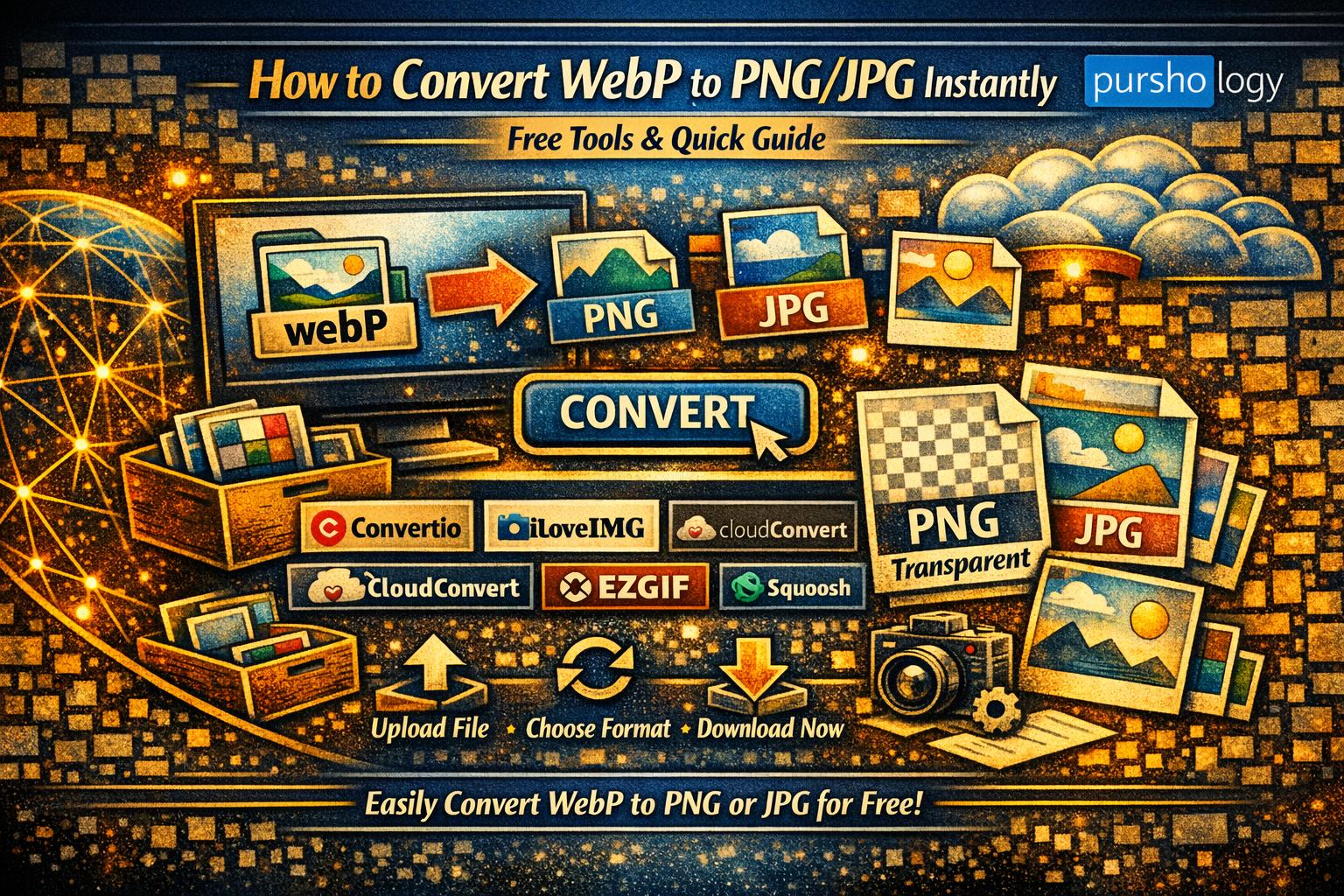
WebP images are great for compression and speed — but not every tool or platform supports them yet. Whether you need PNGs for transparency or JPGs for compatibility, converting WebP files is super easy using free online tools.
Here’s a clean, SEO‑optimized guide to help you convert WebP to PNG/JPG instantly.

✅ TL;DR
You can convert WebP to PNG/JPG instantly using free online tools like Convertio, ILoveIMG, CloudConvert, EZGIF, and Squoosh. Just upload → choose format → download. No software needed.
✅ Top Free Tools to Convert WebP to PNG/JPG Instantly
Below are the fastest, safest, and most user‑friendly WebP converters available online:
1. Convertio (Web‑Based Converter)
🔗 https://convertio.co/webp-png/
Convertio is fast, supports bulk conversions, and works directly in your browser.
How to use:
- Open link
- Upload WebP
- Choose PNG or JPG
- Download
2. ILoveIMG – Simple Drag‑and‑Drop Conversion
🔗 https://www.iloveimg.com/webp-to-jpg
ILoveIMG has a clean UI and supports batch conversions.
Best for: Large sets of images.
3. CloudConvert – High‑Quality Output
🔗 https://cloudconvert.com/webp-to-png
You can tweak compression, quality, and dimensions before converting.
Best for: Designers who need control over output quality.
4. EZGIF – Convert + Edit WebP Easily
🔗 https://ezgif.com/webp-to-png
If you also need editing (crop, compress, resize), EZGIF is perfect.
Best for: Bloggers & creators needing quick edits before download.
5. Squoosh (Google’s Image Tool)
🔗 https://squoosh.app/
Blazing fast, offline support, sliders to adjust quality.
Best for: Developers & performance‑focused users.
✅ Step‑by‑Step: Convert WebP to PNG/JPG
Method 1: Using an Online Converter (Fastest)
- Open any converter from the list above
- Upload your WebP file
- Choose PNG (for transparency) or JPG (for small file size)
- Click Convert
- Download the converted file
Method 2: Convert via Browser (If you already opened the image)
- Open the WebP image in Chrome
- Right‑click → Save image as…
- Change file extension manually to
.pngor.jpg
(Works only if the server serves non‑WebP fallback — not always effective)
Method 3: Convert Using Software (Offline)
If you want to convert without internet:
- Paint / Paint 3D (Windows) → Open WebP → Save as PNG/JPG
- Preview (Mac) → Export as PNG/JPG
- Photoshop + WebP Plugin
- GIMP (Free) → Fully supports WebP
✅ When to Choose PNG vs JPG?
Choose PNG if you need:
✅ Transparency (logos, graphics)
✅ Sharp edges
✅ Cleaner quality
Choose JPG if you need:
✅ Small file size
✅ Photographs
✅ Website speed optimization
✅ Why Convert WebP?
- Some older software still doesn’t support WebP
- You need PNG for transparency
- JPG is better for lightweight, high‑speed pages
- Required by marketplaces, CMS, or clients
🚀 Final Thoughts
Converting WebP files to PNG or JPG is simple, fast, and free using the tools above. Whether you’re a designer, developer, blogger, or business owner — these converters help you get the job done instantly.
📣 Need More Tools or Want a Custom Workflow?
Tell me your use case (blogging, e‑commerce, design, coding), and I’ll recommend the best conversion + optimization setup tailored for you!