
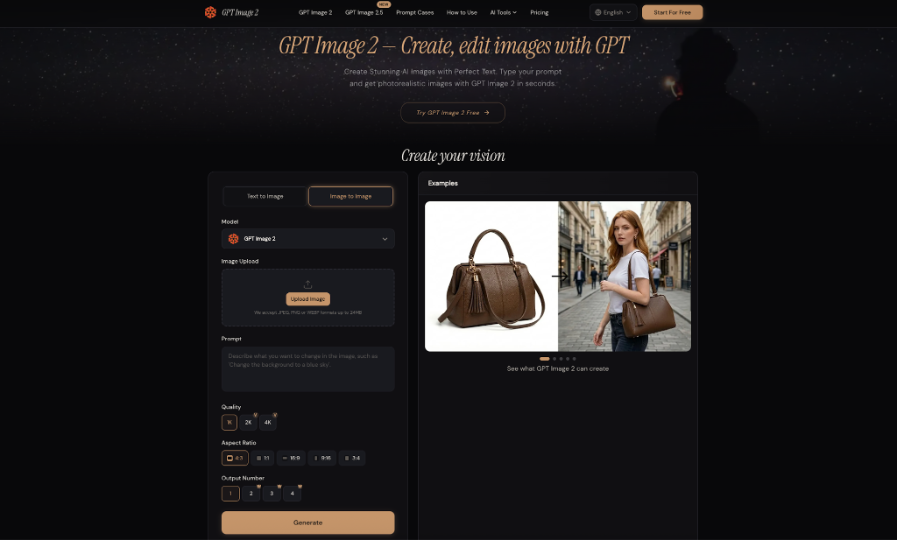
A social feed does not need a new visual style every day. It needs images that make individual posts easier to notice and understand. Some posts begin with no visual at all. Others already have a useful photo that needs a small change. That makes social media a practical place for both generation and editing. GPT Image 2 can create images from text and work from uploaded images, so the same platform can support several kinds of posts. The useful approach is to match the image task to the post instead of generating by default.
First, Sort the Post Into One of Three Visual Jobs
Before opening an image tool, decide which of these situations you are in.
You may need a visual from nothing because the post is about an abstract idea. You may already have a photo that is almost usable. Or you may have an existing visual direction that needs to be adapted for another format or another installment in a series.
This quick sorting step prevents unnecessary work. A real customer photo should not be replaced by an invented scene, and a strong existing photo should not be regenerated when only the background is distracting.
Once the job is clear, the seven uses below become much easier to apply.
Create From Nothing When the Post Has No Natural Image
- Illustrate an Abstract Idea
Posts about productivity, pricing, learning, creativity, or online habits often have no obvious photograph.
Use a simple visual metaphor instead of a literal stock-photo cliché. A post about too many tasks could show an orderly desk overwhelmed by labeled notes. A post about decision fatigue could show several nearly identical folders with one clearly selected.
Keep the concept easy to understand in one glance. Social media is not the place for an illustration that needs a paragraph of explanation before the caption begins.
- Build a Clean Background for an Announcement
Events, launches, schedule updates, and limited promotions often need a visual quickly.
Rather than asking the generator to render every date, price, and detail inside the image, create a clean scene or graphic background with deliberate empty space. Add critical copy separately where you can control spelling and placement.
If the final post is square, design around a central focal point. If text will appear at the top, keep that zone quiet.
The background has one job: make the announcement feel intentional without fighting the information.
- Give a Blog or Newsletter Link Its Own Visual
Sharing the same plain title card every week can make useful content disappear into the feed.
A custom editorial image can provide a better entry point. A newsletter about remote work might use a compact desk scene. An article about online shopping could use packages, a phone, and a comparison list arranged as a clean still life.
The image only needs to express the topic clearly enough to make the link feel specific.
Reuse What You Already Have When the Original Still Has Value
- Clean Up a Distracting Photo
A real photo may have the right person, object, or environment but one unwanted detail: a cable, bag, sign, cup, or cluttered shelf.
That is a good editing task. Preserve the subject and ask for the distracting element to be removed while continuing the surrounding wall, floor, or background naturally.
GPT Image 2 supports uploaded-image editing, so the original photo can remain the starting point instead of being replaced by a newly generated scene.
Check the repaired area closely for background errors.
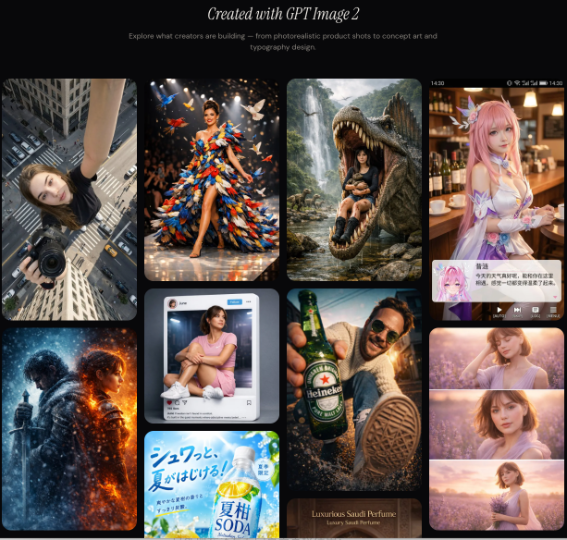
- Refresh a Familiar Image for a New Post
A useful image does not always need to be retired after one use.
Perhaps a desk photo has appeared before, but the next post would work if one notebook changed color and a background object disappeared. Perhaps a simple product setup can be adapted to a new seasonal theme without altering the product itself.
The key is to change supporting details rather than the information that makes the image real.
This creates continuity without reposting the exact same visual.
- Adapt a Strong Visual to Another Format
A horizontal image may work beautifully on a blog and poorly in a vertical story. A centered square composition may become awkward in a wide banner.
Instead of stretching the image or using an aggressive crop, create or edit a version that preserves the focal subject while giving the new format enough space.
Keep important details away from the extreme edges where platform elements may overlap.
One visual idea can travel across formats without pretending that every platform has the same shape.
Turn a Repeating Topic Into a Recognizable Series
- Build a Weekly Visual Format
A recurring content series becomes easier when some visual decisions are already fixed.
A weekly book recommendation could use the same overhead composition with a different central object. A small-business tip series might use simple editorial illustrations with one focal object, a consistent background treatment, and room for a short title. A creator Q&A could use the same portrait framing while changing the supporting scene.
Save the structure of the successful prompt rather than one exact image. Keep two or three elements consistent and let the topic supply the variation.
The result feels connected without becoming a clone of last week’s post.
What a Seven-Post Week Might Actually Look Like
Consider a simple content calendar. Monday shares a blog article and uses a new editorial illustration. Tuesday posts a real behind-the-scenes photo with no AI change at all. Wednesday announces an event with a generated background and manually added text. Thursday reuses a strong product photo after removing one distracting object. Friday adapts the blog visual to a vertical story. Saturday runs the weekly tip series using its saved prompt structure. Sunday uses a real customer or community photo.
AI appears only where it solves a visual problem. Real photos provide specificity, while generated and edited visuals fill genuine gaps.
A varied feed comes from choosing the right format for each message, not from changing style randomly.
Before You Publish, Ask Whether the Image Is Acting Like Evidence
The last check is especially important on social media because viewers scroll quickly and may not study captions closely.
If the image shows a real product, place, event, customer result, or person, ask whether the generated or edited version could create a false impression. A fictional restaurant dish should not look like the exact item being sold. A generated room should not stand in for an actual property. An altered before-and-after image should not be presented as proof of real work.
Use generated visuals freely for concepts, illustrations, fictional scenes, and promotional backgrounds where their role is clear. Keep factual content grounded in real images when the visual itself is part of the claim.
Good social content earns attention without asking the image to pretend to be something it is not.
Conclusion
The seven most useful social-media applications for AI images cover different jobs: illustrating abstract ideas, supporting announcements, promoting articles, cleaning up photos, refreshing existing visuals, adapting formats, and building recurring series. They do not require every post to become an AI post. In fact, a stronger feed usually mixes generated visuals with real photos, text-based graphics, and simple unedited content. Decide what the post needs first, then choose generation, editing, or no AI at all. When the image has a clear purpose, it becomes easier to create, easier to review, and more useful to the message.