
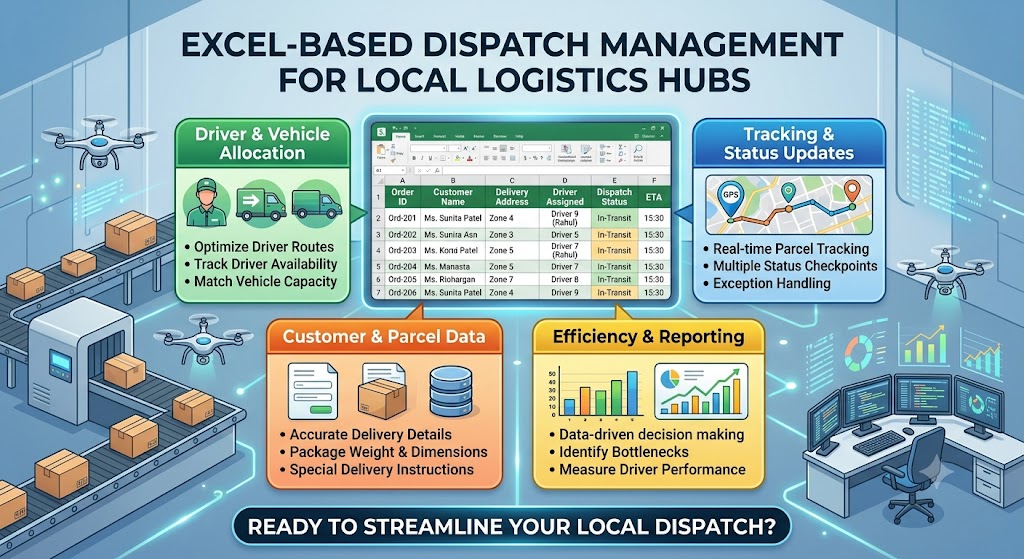
For a small courier office or local logistics hub, the dispatch desk is where many moving parts come together: customer orders, delivery addresses, riders or drivers, parcels, pickup times, and delivery status. When these details are kept in scattered notebooks or chat messages, it becomes easy to miss a parcel or assign the wrong delivery.
If your hub also handles counter billing or retail-style checkout, see our related guide on using barcode scanners and POS billing systems.

A simple dispatch sheet in Excel can turn that daily information into one organized working list. This guide explains how to build a practical courier dispatch sheet, which columns to include, how to update delivery status, and how to use basic Excel features to reduce manual mistakes.
What Is a Dispatch Sheet?
A dispatch sheet is a daily or shift-wise record used to plan and track shipments that are leaving a courier or logistics hub. It can contain the shipment number, customer, destination, assigned delivery person, dispatch time, expected delivery time, and current status.
For a small operation, Excel is often enough to start because the team can sort, filter, print, and update rows without buying a specialized logistics system. Current logistics template examples also commonly combine shipment details, vehicle or driver assignment, delivery planning, and status tracking in one workbook. citeturn0search2turn0search0
Why Use Excel for Courier Dispatch Management?
- One source of truth: The dispatch team can work from one daily list instead of multiple handwritten notes.
- Easy filtering: Filter shipments by driver, area, status, or dispatch time.
- Fast updates: Change a delivery from Pending to Out for Delivery or Delivered without rewriting the record.
- Daily reporting: Keep completed sheets as a basic operational history.
- Low starting cost: A small hub can begin with tools it already uses.
Recommended Columns for a Courier Dispatch Sheet
Do not add every possible field. Start with information the dispatcher actually needs during the shift. A practical layout is:
| Column | Purpose |
|---|---|
| Dispatch Date | Date on which the parcel is assigned or sent out. |
| AWB / Tracking No. | Unique shipment reference used to identify the parcel. |
| Order No. | Internal order or invoice reference. |
| Customer Name | Recipient or business customer. |
| Phone | Contact number for delivery coordination. |
| Area / Pincode | Useful for grouping nearby deliveries. |
| Delivery Address | Destination information required by the delivery team. |
| Assigned Rider / Driver | Person responsible for the shipment. |
| Vehicle | Bike, van, or other vehicle reference when applicable. |
| Dispatch Time | Actual time the shipment leaves the hub. |
| Expected Delivery | Planned delivery date or time window. |
| Status | Pending, Assigned, Dispatched, Out for Delivery, Delivered, or Exception. |
| POD / Remarks | Proof-of-delivery reference or notes about an exception. |
How to Create a Dispatch Sheet in Excel
Step 1: Create the main worksheet
Open Excel and create a worksheet named Daily Dispatch. Put the column headings in the first row. Keep the headings short and consistent so they remain easy to read when the sheet is filtered.
Step 2: Convert the range into an Excel Table
Select the heading and data area and use Insert > Table. An Excel Table gives you filter buttons, keeps formatting consistent, and makes it easier to add new rows without breaking the structure.
Step 3: Add a controlled status list
Use Data Validation for the Status column rather than allowing every staff member to type their own wording. A simple list can be: Pending, Assigned, Dispatched, Out for Delivery, Delivered, Hold, Exception.
Consistent status names make filtering and reporting much more reliable.
Step 4: Enter the day’s shipments
Import or type the shipments that need action during the shift. Check tracking numbers and addresses before assigning them to a rider. If your operation receives orders from another system, keep the original tracking number as the key reference.
Step 5: Assign riders by area
Use the Area or Pincode column to group deliveries that are geographically close. This does not replace proper route optimization, but for a small local hub it can make manual assignment more systematic.
Step 6: Record actual dispatch time
When a rider leaves the hub, enter the actual dispatch time and change the status. Avoid entering a planned time as if it were an actual event; keeping the distinction improves the usefulness of your records.
Useful Excel Features for Dispatch Teams
Filters
Filters let a dispatcher quickly see only today’s pending shipments, one rider’s workload, or deliveries for a particular area. This is one of the most useful features for a busy dispatch desk.
Conditional formatting
Use conditional formatting to make exceptions easier to spot. For example, you can highlight shipments that remain Pending close to their dispatch cutoff or flag an Exception status for supervisor attention.
Sort by dispatch time
Sorting by planned or actual dispatch time helps the team see what should leave first. If your workflow has pickup or delivery windows, keep those fields separate rather than putting multiple times into one text cell.
COUNTIF for basic status reporting
A simple formula such as =COUNTIF(L:L,"Delivered") can count delivered rows when Status is in column L. Similar formulas can count Pending, Out for Delivery, or Exception shipments.
SUMIFS for COD or shipment-value tracking
If you add a COD Amount column, SUMIFS can help total the amount assigned to a rider or the amount associated with a particular status. This should support operations reporting, not replace your accounting records.
A Simple Daily Dispatch Workflow
- Morning: Load or enter the shipments scheduled for dispatch.
- Check: Verify tracking number, address, pincode, contact details, and special instructions.
- Group: Sort or filter shipments by delivery area.
- Assign: Allocate shipments to riders or drivers.
- Dispatch: Record the actual departure time and update the status.
- Monitor: Review pending and exception shipments during the shift.
- Close: Record delivery confirmation or the reason for non-delivery.
- Archive: Save the completed day’s sheet using a consistent file name.
Example File Naming System
A simple naming convention prevents daily files from becoming difficult to find. For example:
Dispatch_Indore_Hub_2026-09-08.xlsx
If you operate multiple hubs, add the hub code. Keep the date in YYYY-MM-DD format so files sort naturally in folders.
Common Dispatch Sheet Mistakes to Avoid
- Using free-text statuses: Variations such as Delivered, delivered, Done, and Complete make reporting messy.
- Overloading one cell: Keep customer, address, phone, and status in separate columns.
- Deleting completed rows: Move or archive completed records instead so the day’s activity remains traceable.
- No owner for exceptions: An Exception row should have a clear next action or responsible person.
- Editing the master structure: Protect headings and formulas where appropriate so accidental changes do not break the sheet.
- Using Excel beyond its limits: As shipment volume, users, hubs, tracking requirements, or integrations grow, a dedicated logistics system may become more practical. Current logistics guidance similarly distinguishes small operations that can use Excel from operations needing multiple warehouses, tracking numbers, or carrier integrations. citeturn0search2
When Should a Courier Hub Move Beyond Excel?
Excel is useful when the operation is small enough for the team to maintain one controlled workbook. It becomes less comfortable when several people edit the same data at once, multiple hubs need synchronized information, customers expect live tracking, or the team needs automated notifications and carrier integrations.
A practical approach is to first standardize the dispatch process in Excel. Once the team knows exactly which fields and statuses it needs, those same requirements can become the foundation for a courier management application. Automated courier platforms commonly add centralized dispatching, driver assignment, route planning, and live delivery visibility beyond a spreadsheet workflow. citeturn0search7
Quick Dispatch Sheet Checklist
- ☐ Every shipment has a unique tracking or AWB number.
- ☐ Customer contact and delivery address are complete.
- ☐ Delivery area or pincode is recorded.
- ☐ Every dispatched parcel has an assigned rider or driver.
- ☐ Status values follow one standard list.
- ☐ Actual dispatch time is recorded.
- ☐ Exceptions have a clear remark or next action.
- ☐ Completed daily sheets are archived safely.
Frequently Asked Questions
Can a small courier office manage dispatch in Excel?
Yes. For a small team with a manageable shipment volume, a well-structured Excel dispatch sheet can handle basic shipment assignment and status tracking.
What is the most important field in a dispatch sheet?
The tracking or AWB number is usually the key reference because it identifies the shipment. It should be paired with customer, destination, assignment, and status information.
Should dispatch and delivery status be in the same Excel sheet?
For a small operation, keeping the lifecycle in one row is usually easier. The row can move from Pending to Assigned, Dispatched, Out for Delivery, Delivered, or Exception while preserving the shipment’s identity.
Can Excel calculate dispatch performance?
Yes. With consistent status values and timestamps, formulas such as COUNTIF, COUNTIFS, and SUMIFS can produce basic operational summaries. More advanced route optimization and live tracking generally require specialized software.
Final Takeaway
A good dispatch sheet is not about adding dozens of columns. It is about making the right information visible at the right time: which shipment is going where, who is carrying it, when it left, and what happened next. Start with a clean Excel table, standardized statuses, filters, and a simple end-of-day process. That foundation can support a local courier hub today and make a future move to dedicated logistics software much easier.