
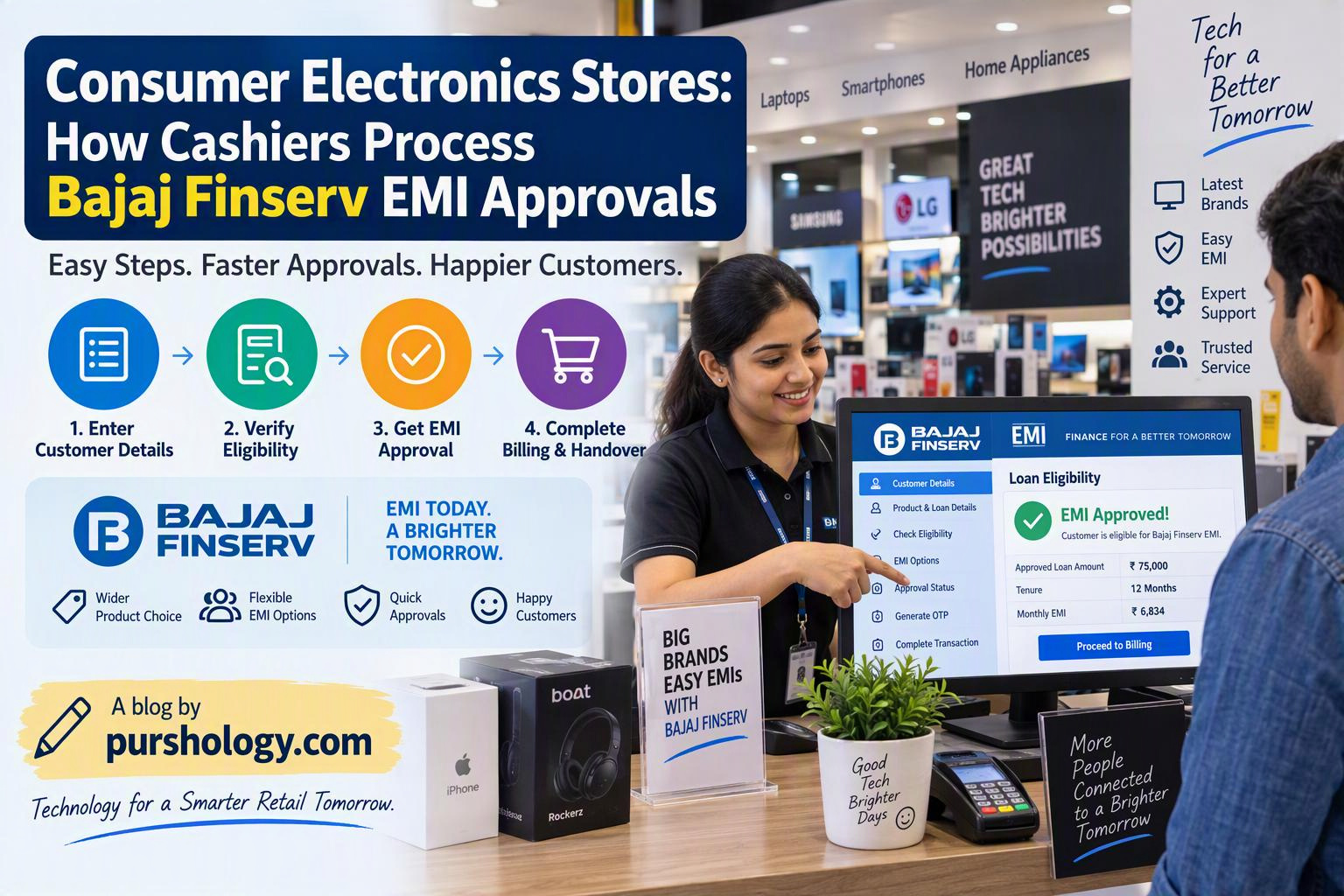
In a consumer-electronics store, an EMI transaction usually involves more than selecting “finance” at the billing counter. The cashier must match the customer’s chosen product and invoice with the financing workflow, explain the next steps clearly, and confirm the transaction status before handing over the item. The exact process varies by merchant, product, offer, financing channel and current Bajaj Finance/Bajaj Finserv policies.
This guide is for retail staff learning the workflow. It is not a guarantee of approval or a substitute for the store’s current merchant training. Only use the authorised point-of-sale or partner interface provided by your employer.

What does the cashier handle?
- Confirm the product model, price, accessories and final invoice value.
- Tell the customer which financing options are available at that outlet, without promising eligibility or approval.
- Direct the customer to the approved application or verification flow.
- Ensure the customer reviews and consents to the terms, fees, instalment amount and repayment schedule.
- Wait for a clear approval/transaction confirmation in the authorised system.
- Match the approved amount and product details to the invoice before completing the sale.
- Provide the invoice and required transaction documents under store policy.
Before starting the EMI process
Check that the SKU, model, storage/colour variant, quantity, accessories, discounts and tax details are correct. Confirm the total payable amount and whether the store’s offer is applicable to that product and customer. Promotions can have conditions, and “no-cost EMI” wording should not be treated as a blanket promise that every charge is zero in every situation.
Step-by-step cashier workflow
- Confirm the basket. Read back the model and final price. Make sure optional accessories are included only if the customer agreed.
- Select the authorised finance option. Use only the store-approved Bajaj Finserv/Bajaj Finance process or terminal. Do not use a personal phone or unofficial link to collect sensitive data.
- Let the customer complete required steps. The customer should enter credentials, provide OTPs and review terms themselves where the official flow requires it. Staff should never ask the customer to disclose an OTP verbally.
- Check consent and terms. Ensure the customer has an opportunity to review tenure, instalment amount, down payment if any, fees, interest/subvention terms and due dates shown by the authorised system.
- Wait for final status. An application submitted, a verification screen or an “in progress” message is not the same as a final approved transaction.
- Match the transaction. Verify the approval/transaction reference and amount in the official merchant interface, then reconcile it with the invoice.
- Complete the handover. Follow store policy for invoicing, finance documentation, serial-number capture and product release.
Example: a laptop purchase
A customer chooses a laptop with an advertised EMI offer. The cashier checks the exact model and final invoice, then starts the official finance flow. The customer reviews the offer and completes the required verification. The cashier waits for the final transaction confirmation, checks that the approved amount matches the sale and issues the invoice. If the status remains pending or the amount differs, the cashier pauses the handover and asks the authorised supervisor or finance support team to resolve it.
Important security and privacy rules
- Never record or store a customer’s OTP, PIN, password or full authentication credentials.
- Do not photograph identity documents on a personal device or send them through personal messaging apps.
- Collect only information required by the approved process and follow the store’s privacy and retention policy.
- Do not tell a customer that approval is certain before the system confirms it.
- Do not split or alter an invoice to bypass eligibility, transaction limits or financing rules.
- Escalate suspected fraud, duplicate transactions, incorrect amounts or unexplained status messages.
Common errors and how to prevent them
Wrong product or amount: compare the invoice line with the transaction screen before submission. Customer confusion about “no-cost” offers: point to the current written offer terms and ask a supervisor to clarify any fees or conditions. Pending status: do not treat it as approval. Duplicate submission: check the transaction history before retrying, and follow the official reversal/escalation process. Premature handover: release the product only after the store’s required confirmation checks are complete.
What should a cashier know about “no-cost EMI”?
The phrase is marketing shorthand, not a universal guarantee that every part of a transaction has no cost. The applicable offer, product, tenure, merchant discount, fees and customer-specific terms determine the actual arrangement. Do not calculate or promise an instalment from an old poster; use the current authorised offer and disclose the terms displayed to the customer.
Frequently asked questions
Can a cashier approve a customer’s EMI?
No. The financing provider’s authorised process determines eligibility and approval. The cashier facilitates the retail transaction and checks its status.
Should the cashier ask for the customer’s OTP?
No. The customer should complete authentication themselves through the approved flow. Never request or retain their OTP or PIN.
What if the customer is approved but the amount is different?
Pause the sale and escalate through the store’s authorised supervisor or finance support channel. Do not change the invoice or retry blindly.
Key takeaway
Good EMI counter service is accurate, transparent and privacy-conscious. Verify the basket, let the customer review terms, wait for final confirmation and reconcile the approved transaction with the invoice before releasing the product.
Use Bajaj Finserv’s official website and your employer’s current merchant documentation for the latest eligibility, offer terms and transaction steps.