If you’ve ever had a WordPress website break after an update, you already know why backups matter.
A failed plugin update, a hosting issue, a malware infection, or even an accidental click can leave a website partially broken or completely inaccessible. In many cases, the difference between a minor inconvenience and a major disaster comes down to one thing: whether you have a recent backup available.

Unfortunately, many website owners still rely solely on backups stored on their hosting account. While this is better than having no backups at all, it creates a single point of failure. If the hosting server experiences serious problems, the website and its backups could be lost at the same time.
That is why cloud backups have become the recommended approach for WordPress websites.
A Simpler Approach to Cloud Backups
Most backup plugins support cloud storage through services like Google Drive, Dropbox, or Amazon S3. These integrations work well, but users who are looking to avoid big names for privacy, security, or other standards might want to look for a different solution.
Backup Migration takes a different approach.
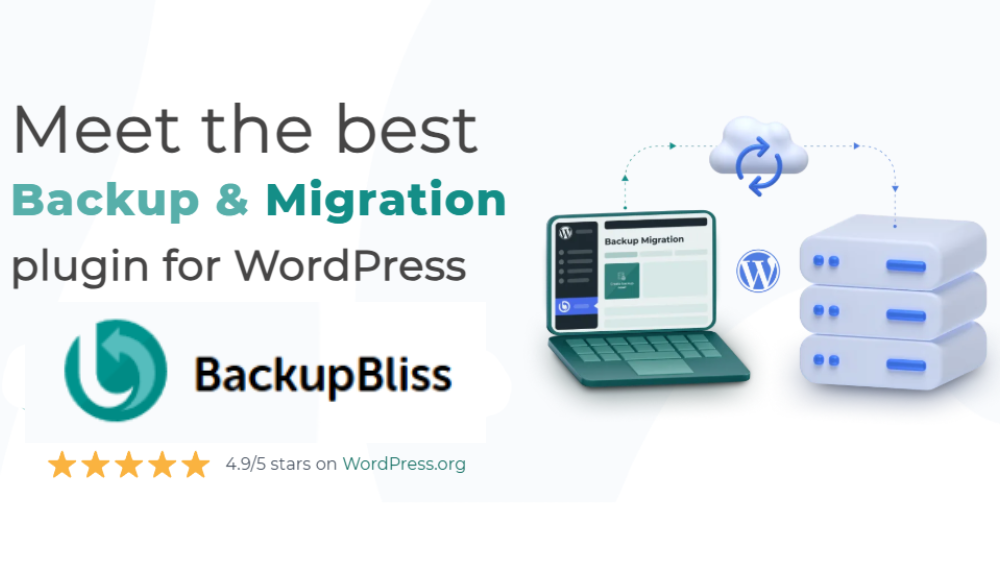
The plugin now includes its own cloud storage platform called BackupBliss, allowing users to store backups off-site without immediately needing a third-party storage provider. What makes it particularly interesting is that BackupBliss includes 1GB of free storage, making it the first WordPress backup plugin to offer its own free cloud storage tier.
For smaller websites, blogs, portfolios, and many business sites, that free storage allocation is often enough to start building a proper backup strategy right away.
Creating Your First Backup
Getting started is straightforward.
After installing Backup Migration from the official WordPress plugin repository, users can begin creating backups immediately using the default settings. Simply ensure that website files and the database are included, then click the “Create backup now” button.
The plugin will generate a complete backup containing themes, plugins, media files, settings, and database content.
For most websites, the process takes only a few minutes.
Users can also configure scheduled backups that run automatically in the background, depending on their needs.
Connecting BackupBliss
Setting up BackupBliss requires only a few steps.
Users create a BackupBliss account, generate an API key, and enter it within the plugin under the section “Where shall the backup(s) be stored?”.
Once connected, newly created backups can automatically upload to the cloud after generation. This means backups remain safely stored outside the hosting environment, providing an additional layer of protection if something goes wrong with the server.
For users who prefer other storage destinations, Backup Migration also supports Google Drive, Dropbox, OneDrive, Amazon S3, FTP/SFTP, pCloud, and Wasabi.
More Than a Backup Plugin
As the name suggests, Backup Migration is not limited to backups.
The plugin can also migrate WordPress websites between domains and hosting providers. Instead of manually moving files, exporting databases, and fixing URLs, users can restore an existing backup on a new WordPress installation and let the plugin handle most of the heavy lifting.
For freelancers, agencies, and website owners who regularly move websites between servers, this can save a considerable amount of time.
Final Thoughts
Backups are one of those tasks that seem unimportant until the moment you need them.
Backup Migration simplifies the process by combining backup creation, cloud storage, restoration, scheduling, and migration tools in a single solution. The addition of BackupBliss makes the plugin stand out even further by giving users access to free off-site cloud storage from day one.
For WordPress users looking for a simple way to protect their websites and streamline migrations, it is a practical solution worth considering.