TL;DR
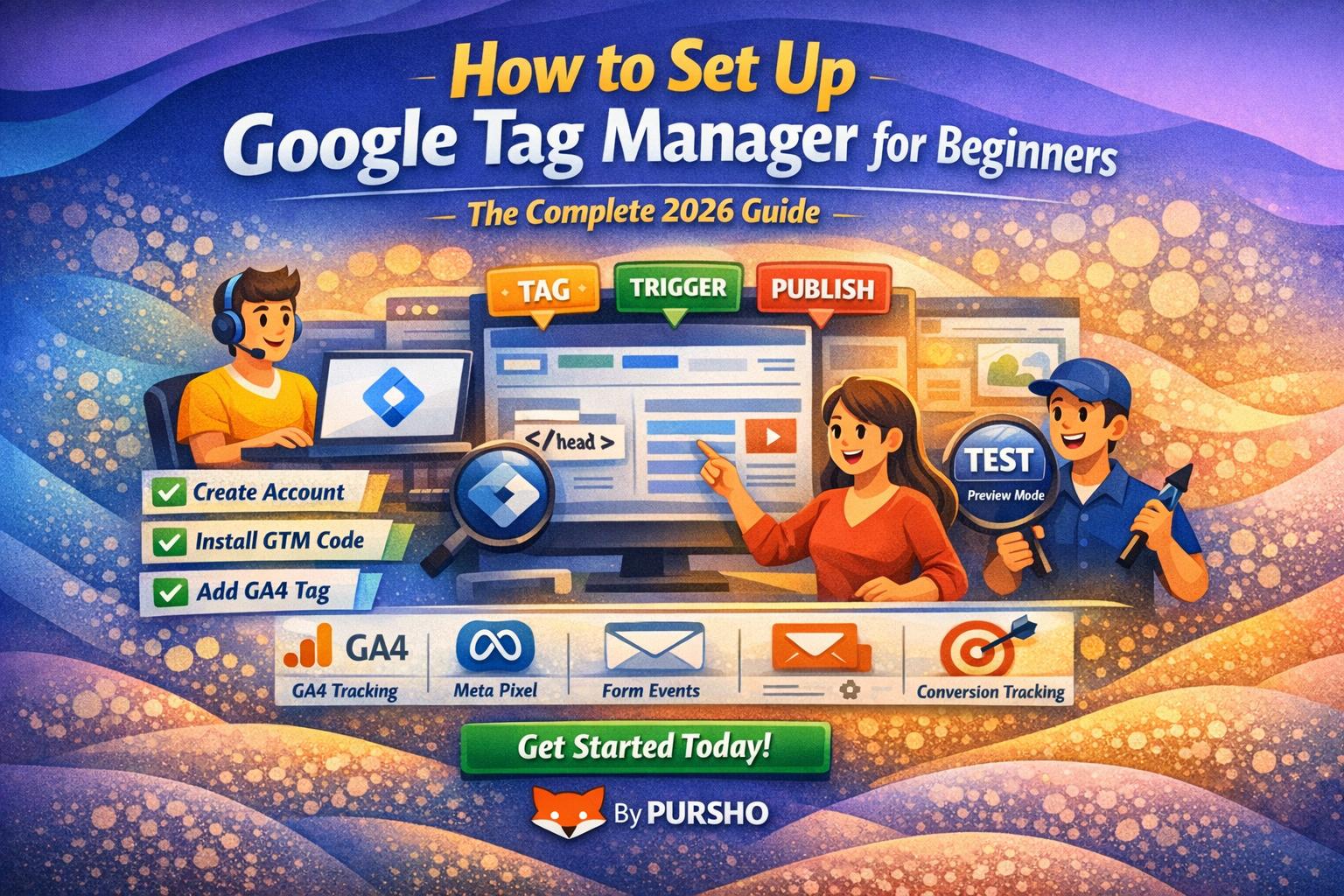
Google Tag Manager (GTM) lets you install tracking tags — like GA4, pixels, and marketing scripts — without editing code. This beginner‑friendly guide shows you exactly how to set up your GTM account, add your first tags, triggers, and publish them safely. Perfect for marketers, founders, and anyone wanting better analytics control.

What Is Google Tag Manager (GTM)?
Google Tag Manager is a free tool that helps you add and manage tracking codes on your website — without touching the site’s code every time. You install GTM once, and afterward, everything runs through the GTM dashboard.
Why beginners love it:
- No developer required for most tracking
- Reduces risk of breaking your website
- Speeds up analytics and marketing implementation
- Makes tag updates easy and organized
✅ Step 1: Create Your Google Tag Manager Account
- Visit tagmanager.google.com
- Click Create Account
- Enter your business name
- Choose where GTM will be used:
- Web
- iOS
- Android
- Server
- Create your workspace
This creates a GTM container where all your future tracking lives.
✅ Step 2: Install GTM on Your Website
Once your container is created, Google shows you two code snippets:
- One goes inside
<head> - The other goes right after
<body>
Add these to every page of your website.
If you’re using a CMS, installation is even easier:
- WordPress → Use plugins like “Site Kit by Google” or “Insert Headers & Footers”
- Shopify → Add code inside theme.liquid
- Wix / Webflow / Squarespace → Use custom code or integrations
Once installed, you’re ready to deploy tags instantly.
✅ Step 3: Add Your First Tag (GA4 Recommended)
GA4 is the most common first tag for new GTM users.
Add a GA4 Configuration Tag:
- Click Tags in the left sidebar
- Click New
- Select Google Analytics: GA4 Configuration
- Enter your Measurement ID (format: G‑XXXXXXX)
- Set Triggering → All Pages
- Click Save
This ensures GA4 fires on every page.
✅ Step 4: Publish Your Workspace
After adding your tag:
- Click Submit (top right)
- Name your version (e.g., “GA4 Setup”)
- Click Publish
Now your GA4 tracking is officially live.
✅ Step 5: Test Everything Using GTM Preview Mode
Preview Mode is your best friend.
- Click Preview
- Enter your website address
- GTM opens a debugging window
- Browse your site and confirm:
- Tags are firing
- Triggers work
- No errors appear
Always test before publishing new tags.
✅ Step 6: Add Additional Helpful Beginner Tags
Once your GA4 is live, here are great tags to add next:
✅ Google Ads Conversion Tracking
Track purchases, leads, bookings, form submissions.
✅ Meta Pixel via GTM
Install once and fire events with triggers (e.g., AddToCart, Lead).
✅ Custom Events (Button Clicks, Form Submissions)
Great for understanding user engagement.
✅ Scroll Depth Tracking
See how far readers scroll on long pages.
✅ Outbound Link Click Tracking
Track clicks leaving your website.
Each tag follows the same structure: Tag → Trigger → Test → Publish.
✅ Best Practices for GTM Beginners
- Name everything clearly (Tag – GA4 – All Pages)
- Use folders to stay organized
- Test before publishing every time
- Avoid duplicate tags that double‑count data
- Use variables to capture dynamic values (page URL, click text, etc.)
GTM grows with your marketing sophistication.
✅ Final Thoughts
Google Tag Manager is one of the most powerful tools beginners can learn. Once installed, it gives you complete flexibility to implement analytics, ads, and custom tracking — all without relying on a developer.
You now have a simple, step‑by‑step foundation to start tagging like a pro.