
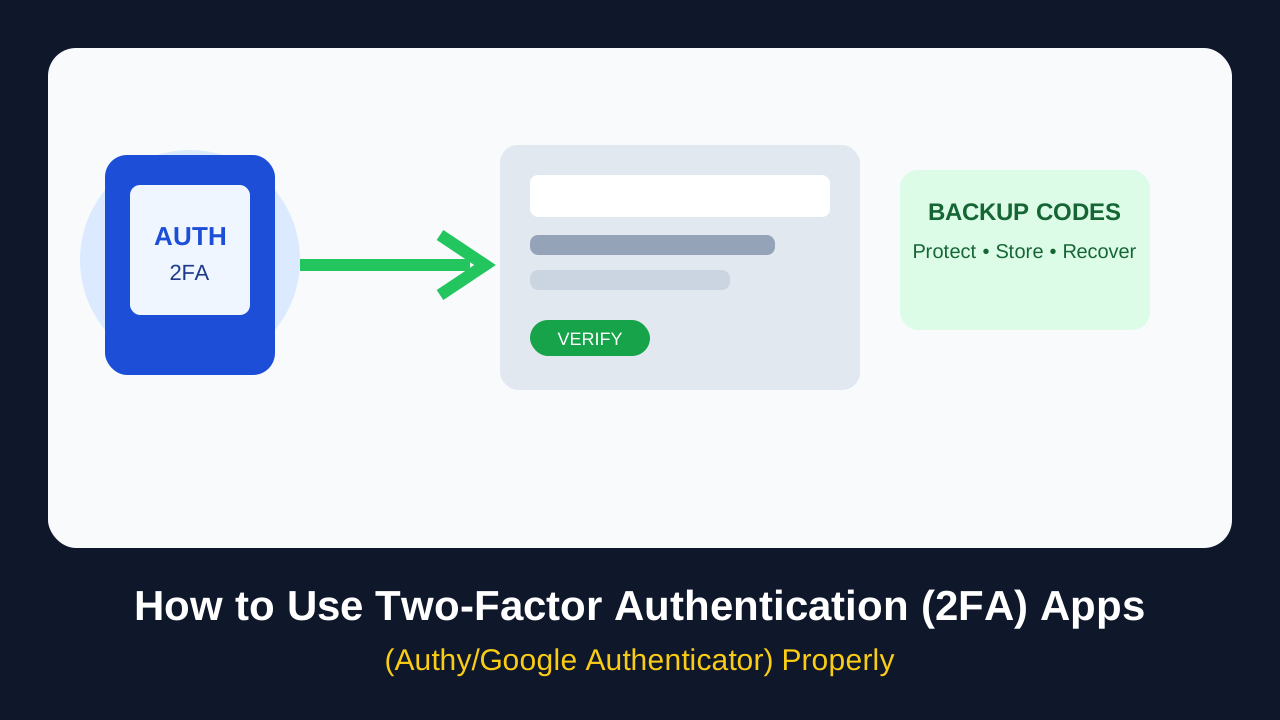
Two-factor authentication adds another verification step to an account in addition to a password. Authenticator apps such as Google Authenticator and Authy are designed to generate time-based verification codes, which can protect accounts even when a password has been exposed. Google’s current documentation says Google Authenticator can generate codes without an internet connection or mobile service and, on supported versions, can synchronize codes across devices through a Google Account.
What 2FA actually protects
A password is one factor: something you know. An authenticator code is a second factor generated by a separate device or app. The second step means an attacker who only has your password may still be unable to complete the login.

2FA does not make an account invulnerable. Phishing, account-recovery abuse, malware and other attacks can still bypass poorly designed processes, so the safest setup combines a strong unique password, MFA, updated devices and careful verification of login requests.
How authenticator apps work
When you enable authenticator-based 2FA on a website or app, the service normally gives you a QR code or setup key. The authenticator app stores the secret and uses it to generate short-lived codes. During future sign-ins, the service checks the code to confirm that the second factor matches.
Because the code is generated locally, the method can work even when the phone has no mobile signal. Google states this explicitly for Google Authenticator.
Step-by-step: setting up 2FA properly
1. Start inside the official account
Open the security settings from the service’s official website or app. Do not enable 2FA by following a setup link sent by an unknown person.
2. Choose an authenticator app
Install Google Authenticator, Authy or another reputable authenticator from the official app store. Avoid downloading APKs or modified versions from random websites.
3. Scan the QR code or enter the setup key
The service will display a secret during enrollment. Treat it as sensitive. Someone who obtains the setup secret may be able to generate valid codes.
4. Enter the current code
The app generates a rotating verification code. Enter it on the account’s setup screen to confirm that enrollment worked.
5. Save recovery options
Many services provide backup or recovery codes. Store them somewhere secure and separate from the primary password. Never paste them into chats or email merely because someone claims to be “support.”
6. Test account recovery
Before you need it, understand what happens if the phone is lost, replaced or reset. Check whether the service provides backup codes, trusted devices, recovery contacts or another secure recovery method.
Google Authenticator: what to know about synchronization
Google currently documents synchronization of Authenticator codes across devices when you are signed in to a Google Account, with support depending on the app version and platform. Google also says synchronized Authenticator codes are encrypted in transit and at rest.
This is convenient for people who routinely change phones, but it also means account-security decisions matter: your Google Account itself should be strongly protected and monitored.
Authy and the importance of a recovery plan
Whichever authenticator you choose, the operational question is the same: what happens when your primary phone disappears? Build a recovery plan before you lose the device. Keep recovery codes in a secure password manager or another protected offline location, and review which accounts depend on the authenticator.
What not to do with 2FA
- Do not share a current 2FA code with a caller claiming to be bank, marketplace or technical support.
- Do not share the authenticator setup secret or recovery codes casually.
- Do not approve a login prompt that you did not initiate.
- Do not rely on the same password for the account and your email recovery account.
- Do not postpone account recovery setup until after your phone is lost.
2FA for work accounts
For business users, 2FA should be part of an access-management policy rather than an optional personal preference. Start with email, password managers, cloud dashboards, payment tools, CRM accounts, website administration and other systems that can expose customer or financial information. Where a service supports stronger phishing-resistant methods, consider those alongside or instead of one-time-code authentication.
Quick 2FA checklist
| Task | Safe practice |
|---|---|
| Setup | Enable 2FA from the official account security page. |
| Secret | Protect the QR/setup key like a password. |
| Codes | Never disclose a live code to another person. |
| Recovery | Store backup codes securely before a phone is lost. |
| Replacement phone | Transfer or restore access before wiping the old device. |
| Business | Prioritize email, admin, payment and customer-data systems. |
Bottom line
Authenticator apps are easy to use once the initial setup and recovery plan are done correctly. The biggest practical lesson is not simply “turn on 2FA”; it is to protect the setup secret, keep recovery options secure, reject unexpected authentication requests and make account recovery part of your security routine.