Buying a used iPhone can save you thousands, but a quick inspection isn’t enough anymore. In 2026, with rising demand for refurbished and pre-owned Apple devices, knowing exactly what to check before handing over your money can help you avoid expensive surprises.
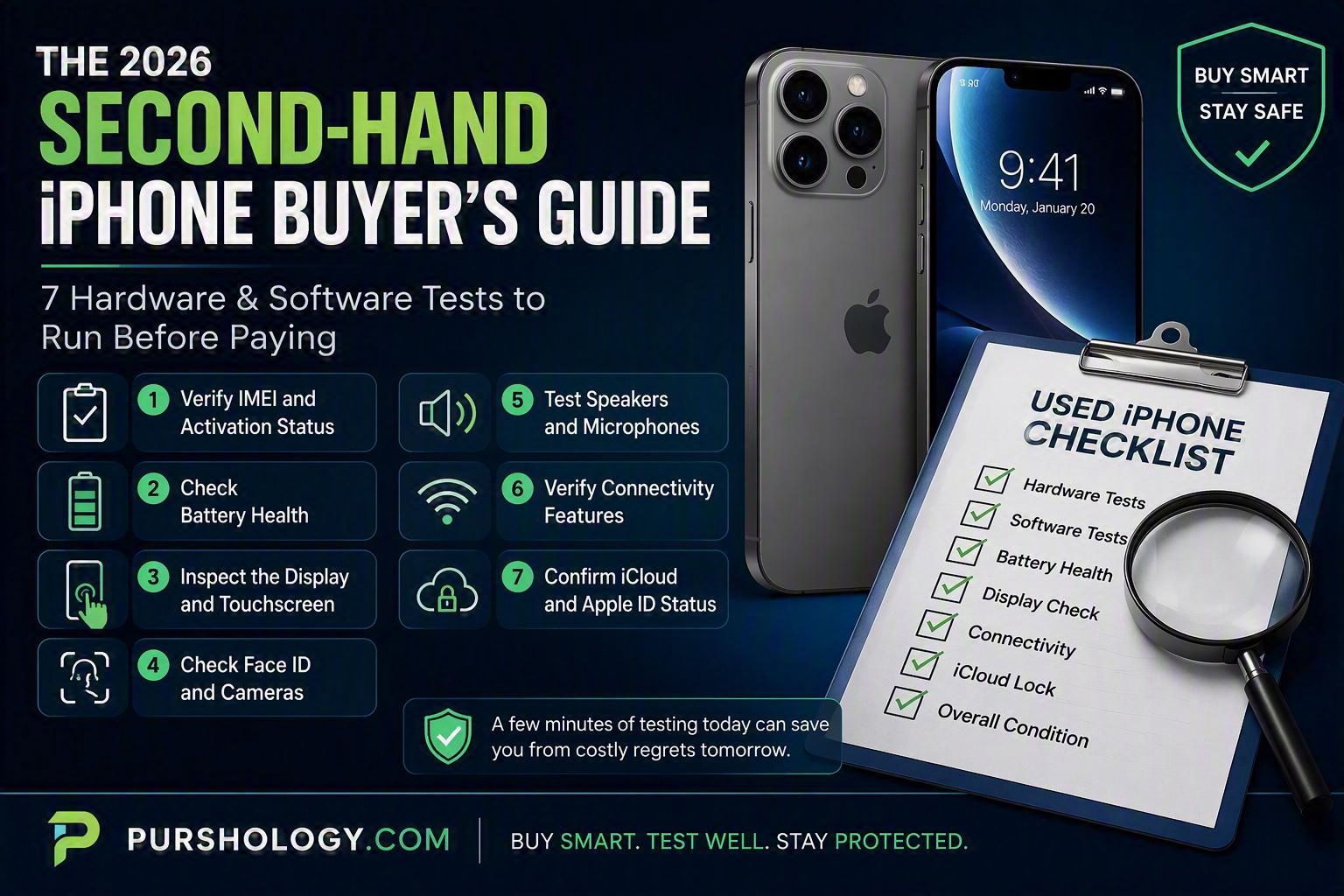
This guide walks you through the 7 essential hardware and software tests every buyer should perform before purchasing a second-hand iPhone.

TL;DR
Before buying a used iPhone:
✅ Verify IMEI and activation status
✅ Check battery health
✅ Test the display and touchscreen
✅ Inspect cameras and Face ID
✅ Confirm speaker and microphone functionality
✅ Test connectivity features (Wi-Fi, Bluetooth, Cellular)
✅ Ensure the device is not locked, blacklisted, or linked to another Apple ID
Spending just 15 minutes on these checks could save you from buying a faulty or unusable device.
Why Buying a Used iPhone Requires More Attention in 2026
The second-hand smartphone market continues to grow as consumers seek flagship performance without flagship prices. While iPhones are known for longevity and strong resale value, not every device on the market is worth buying.
Some devices may have:
- Hidden hardware defects
- Poor battery health
- Replaced displays
- Network restrictions
- Activation Lock issues
- Water damage
- Unauthorized repairs
Fortunately, most of these problems can be identified before you pay.
Test #1: Verify IMEI and Activation Status
This is the single most important check before purchasing any used iPhone.
How to Check
Go to:
Settings → General → About
Locate the IMEI number and ensure it matches:
- The SIM tray (on supported models)
- The original box (if available)
- The seller’s documentation
What to Look For
- IMEI numbers should match everywhere.
- The device should not be reported lost or stolen.
- The phone should activate normally without any restrictions.
Red Flags
❌ Seller refuses to show the IMEI
❌ IMEI mismatch
❌ Activation issues during setup
If something seems suspicious, walk away from the deal.
Test #2: Check Battery Health
Battery replacement is often the biggest hidden expense when buying a used iPhone.
How to Check
Navigate to:
Settings → Battery → Battery Health & Charging
Battery Health Guide
| Battery Health | Condition |
|---|---|
| 90% – 100% | Excellent |
| 85% – 89% | Good |
| 80% – 84% | Acceptable |
| Below 80% | Consider Replacement |
Additional Checks
Look for notifications such as:
- Battery service recommendations
- Unknown battery messages
- Performance management alerts
Red Flags
❌ Battery health below 80%
❌ Non-genuine battery warnings
❌ Rapid battery drain during testing
Test #3: Inspect the Display and Touchscreen
Screen replacements can significantly affect your experience and resale value.
What to Test
Open a white image and check for:
- Dead pixels
- Bright spots
- Yellowing
- Uneven brightness
Then test:
- Swipe responsiveness
- Multi-touch gestures
- Keyboard accuracy
- Edge responsiveness
Red Flags
❌ Unresponsive areas
❌ Flickering display
❌ Visible burn-in or discoloration
❌ “Unknown Display” notification
A faulty display can be expensive to replace, especially on newer models.
Test #4: Check Face ID and Cameras
A damaged Face ID system can be costly and difficult to repair.
Face ID Test
Go to:
Settings → Face ID & Passcode
Try setting up Face ID.
Camera Tests
Check:
- Front camera
- Rear cameras
- Video recording
- Portrait mode
- Zoom functionality
- Flash
Take photos in both bright and low-light conditions.
Red Flags
❌ Face ID unavailable
❌ Blurry camera images
❌ Camera shaking or autofocus issues
❌ Dark spots or lens damage
Test #5: Test Speakers and Microphones
Many buyers overlook audio testing until after purchase.
Speaker Test
Play:
- Music
- Videos
- Speakerphone calls
Listen for:
- Distortion
- Crackling
- Reduced volume
Microphone Test
Use:
- Voice Memos
- Video recording
- Phone calls
Ensure your recorded voice sounds clear.
Red Flags
❌ Muffled sound
❌ Distorted audio
❌ Inconsistent microphone performance
Test #6: Verify Connectivity Features
An iPhone may appear perfect yet have connectivity problems that aren’t immediately visible.
Test These Functions
✅ Wi-Fi
Connect to a network and browse websites.
✅ Bluetooth
Pair with earbuds or another device.
✅ Cellular Network
Insert a SIM card and make a test call.
✅ GPS
Open Apple Maps and confirm location accuracy.
✅ AirDrop
If possible, send a file to another Apple device.
Red Flags
❌ Weak signal reception
❌ Bluetooth pairing failures
❌ Network drops
❌ GPS inaccuracies
Test #7: Confirm iCloud and Apple ID Status
An iPhone linked to another person’s Apple ID can become unusable.
How to Check
Navigate to:
Settings
If an Apple ID appears at the top, ask the seller to sign out completely.
Perform a Factory Reset Check
Ideally, the seller should erase the device and complete setup in your presence.
The phone should activate normally without requesting another person’s Apple ID credentials.
Red Flags
❌ Activation Lock enabled
❌ Seller cannot remove Apple ID
❌ Device requests unknown credentials
Never purchase a device that remains linked to someone else’s account.
Bonus Inspection Tips for Used iPhone Buyers
Before finalizing payment:
Check Physical Condition
Inspect for:
- Bent frame
- Loose buttons
- Cracked glass
- Charging port damage
Test Charging
Bring your own charging cable and verify:
- Wired charging
- Fast charging capability
- Stable connection
Look for Liquid Damage
Check for:
- Corrosion around ports
- Foggy camera lenses
- Moisture indicators
Where Should You Buy a Second-Hand iPhone in 2026?
The safest options typically include:
- Certified refurbishment platforms
- Device buyback marketplaces
- Trusted resale websites
- Reputable local retailers
Always prioritize sellers that provide:
- Return policies
- Warranty coverage
- Detailed device grading
- Device verification checks
Final Verdict
Buying a second-hand iPhone can be one of the smartest tech purchases you make in 2026, but only if you thoroughly inspect the device before paying.
By running these 7 essential hardware and software tests, you’ll dramatically reduce the risk of purchasing an iPhone with hidden defects, account locks, poor battery health, or expensive repair needs.
A few minutes of testing today can save you from weeks of frustration and unexpected costs later.
Ready to Buy a Used iPhone with Confidence?
Before you hand over your money, run through this checklist and verify every critical feature. If you’re shopping for a pre-owned iPhone, choosing a trusted platform that performs professional device inspections can help ensure you’re getting genuine value, performance, and peace of mind. For more smartphone buying tips, resale guides, and expert insights, visit Purshology.com.