
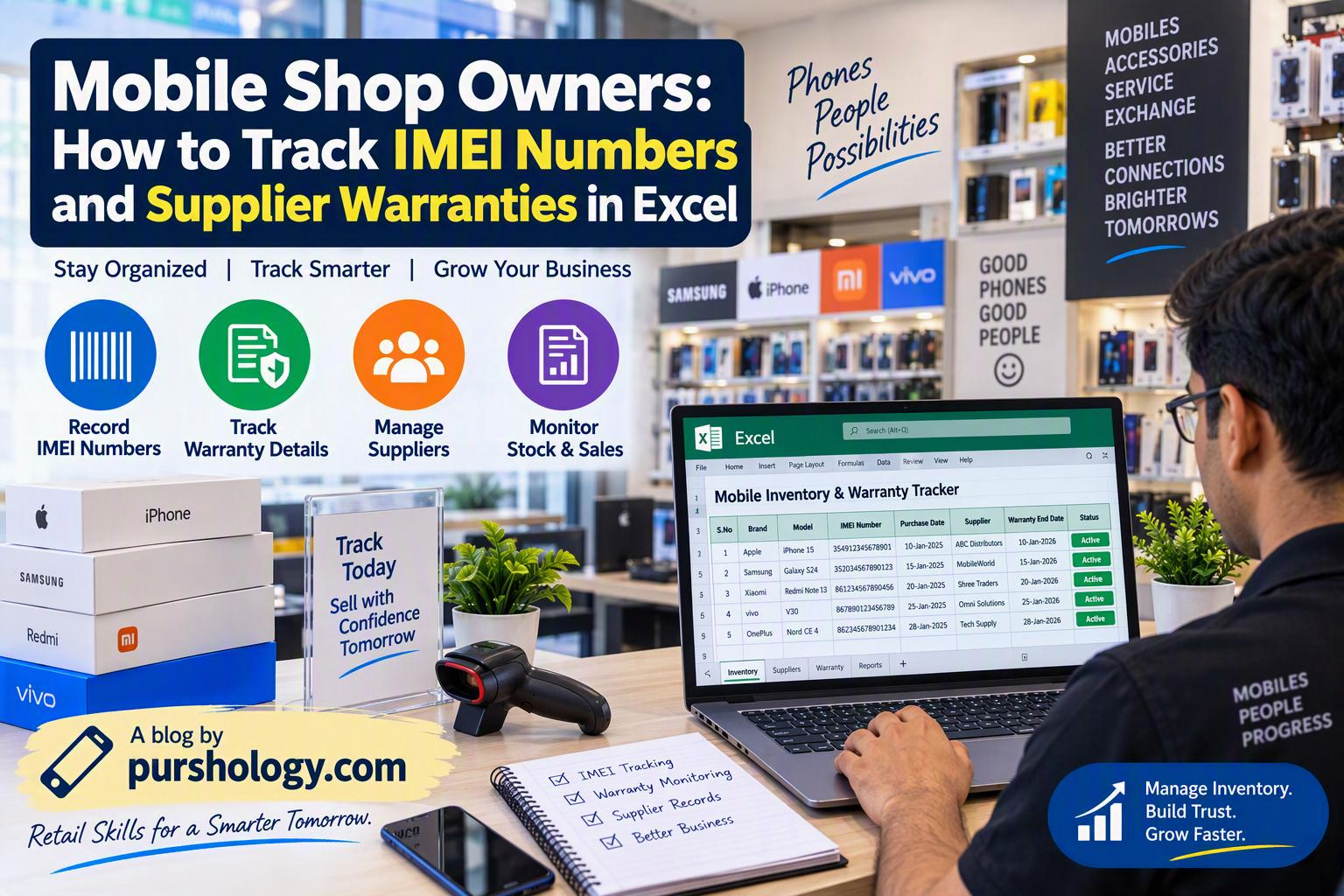
A mobile shop can lose time and money when a handset’s IMEI, supplier invoice, purchase date or warranty details cannot be found at the moment of a sale, return or repair. A simple, access-controlled Excel register can connect each device to its purchase record and warranty evidence without turning the sheet into an uncontrolled customer database.
An IMEI identifies a mobile device on cellular networks. It is usually a 15-digit number, and a dual-SIM handset may have more than one IMEI. The Government of India’s Department of Telecommunications provides official IMEI-verification services through Sanchar Saathi / CEIR. Use the official portal or its stated verification process rather than relying on a seller’s screenshot.

Set up the workbook before entering stock
Create one workbook with separate sheets for Device Register, Supplier Register and Lists. Keep one row per physical handset in the device register. Do not put multiple phones into one row simply because they share the same model or purchase invoice.
Recommended columns for the Device Register
- Internal stock ID
- Brand, model, storage and colour
- IMEI 1 and IMEI 2, if present
- Supplier name and supplier invoice/reference number
- Purchase/received date and unit cost, restricted to staff who need it
- Warranty provider or warranty type
- Warranty start date and end date, based on the supplier/manufacturer’s written terms
- Current status: In Stock, Reserved, Sold, Returned, Sent for Service or Quarantined
- Sale date and sales invoice number, when applicable
- Location/bin and last verification date
- Notes for exceptions, without unnecessary personal information
Keep customer name, phone number or identity documents out of the inventory register unless your business genuinely needs them for a defined process. If a sale needs customer details, keep them in the authorised billing system and link the record using an invoice number rather than copying more personal data than necessary.
Step 1: verify the IMEI at receiving
- Match the handset to the box label and supplier invoice.
- On the handset, use the manufacturer-supported method—commonly dialling *#06#—to display the IMEI. Some models show separate identifiers for each SIM slot.
- Compare the displayed number with the device label and purchase documentation. Stop and investigate any mismatch instead of editing the number in the spreadsheet to make it fit.
- Use the official government IMEI-check service when appropriate. The CEIR portal explains that an IMEI shown as blacklisted, duplicate or already in use is a reason to avoid buying the device. A clean check is not a substitute for a proper supplier invoice, physical inspection and warranty verification.
- Enter the IMEI as text so Excel does not reformat it. In Excel, format the IMEI columns as Text before pasting numbers.
Step 2: prevent duplicate IMEIs
Duplicate identifiers can indicate a data-entry mistake or a more serious stock issue. Use a separate validation column and review any duplicate before the handset is put on sale. If IMEI 1 is in column D, a simple check for rows from D2 downward is:
=IF(D2="","",IF(COUNTIF($D:$D,D2)>1,"CHECK DUPLICATE","OK"))
For a dual-SIM stock register, also check IMEI 2 against both IMEI columns, not only against other values in the same column. If you use Excel Tables, structured references can make formulas easier to maintain. Test formulas on sample data before relying on them for live stock.
Step 3: calculate warranty dates carefully
Do not assume that every brand gives the same warranty period or that warranty always starts on the supplier invoice date. Use the written warranty terms and the date accepted by the manufacturer or distributor. If the supplier provides an end date, record that directly and keep the invoice/proof reference.
If your business policy allows a standard warranty duration, the date can be calculated with a formula such as =EDATE([@[Warranty Start]],[@[Warranty Months]]). This is only a convenience; verify the result against the actual terms, because exclusions, activation dates and service policies can differ.
Step 4: create a warranty-expiry view
Add a “Warranty Status” column. For example, if the warranty end date is in H2, this formula labels devices whose warranty has expired or will expire within 30 days:
=IF(H2="","VERIFY DATE",IF(H2<TODAY(),"EXPIRED",IF(H2<=TODAY()+30,"EXPIRING SOON","ACTIVE")))
Apply conditional formatting to highlight “VERIFY DATE,” “EXPIRED” and “EXPIRING SOON.” Review the list weekly, but remember that the formula is an internal reminder—not a warranty decision. Confirm eligibility with the authorised warranty provider before promising a repair or replacement.
Step 5: link every device to supplier evidence
Store the supplier invoice, delivery challan or warranty document in a controlled business folder. Put a file reference or document ID in the sheet; avoid storing files in personal accounts. Restrict editing rights, protect the workbook with your organisation’s approved controls, keep a backup, and record who changed important fields. A password on an Excel file is not a substitute for appropriate access permissions and secure storage.
Daily receiving and sales checklist
- Physical device, box label and supplier invoice agree.
- IMEI 1 and IMEI 2 are captured accurately where applicable.
- Duplicate check passes or the exception is investigated.
- Supplier, purchase reference and warranty evidence are recorded.
- Stock status and storage location are correct.
- At sale, the invoice reference and status are updated.
- Returned or suspicious devices are kept out of normal sale stock until resolved.
Common Excel mistakes
- Letting Excel convert a long identifier into scientific notation or remove leading digits.
- Using the model name as the unique stock key instead of a device-level ID/IMEI.
- Overwriting the original supplier warranty date without keeping evidence.
- Sharing the entire stock workbook with staff who do not need cost or customer information.
- Deleting sold-device rows instead of preserving a traceable stock history.
Frequently asked questions
Can I verify an IMEI in Excel?
Excel can check format and duplicates, but it cannot confirm whether an IMEI is blacklisted or genuine. Use the official CEIR/DoT verification service for that check.
Should I store both IMEIs?
If a device has two IMEIs, record both in separate fields and make sure your duplicate-check process compares both columns.
Can I guarantee warranty based on the spreadsheet?
No. The sheet helps locate the evidence. Final eligibility depends on the applicable manufacturer, distributor or supplier terms.
Key takeaway
A reliable IMEI and warranty register has one row per device, a traceable supplier record, validated identifiers, evidence-backed warranty dates and controlled access. Start with a small pilot, test the duplicate and expiry checks, and only then make the workbook part of the shop’s daily stock process.
For day-to-day sales, PURSHO’s mobile billing software page is also relevant when reviewing how billing records connect to device sales; confirm current product features before adopting a workflow.