
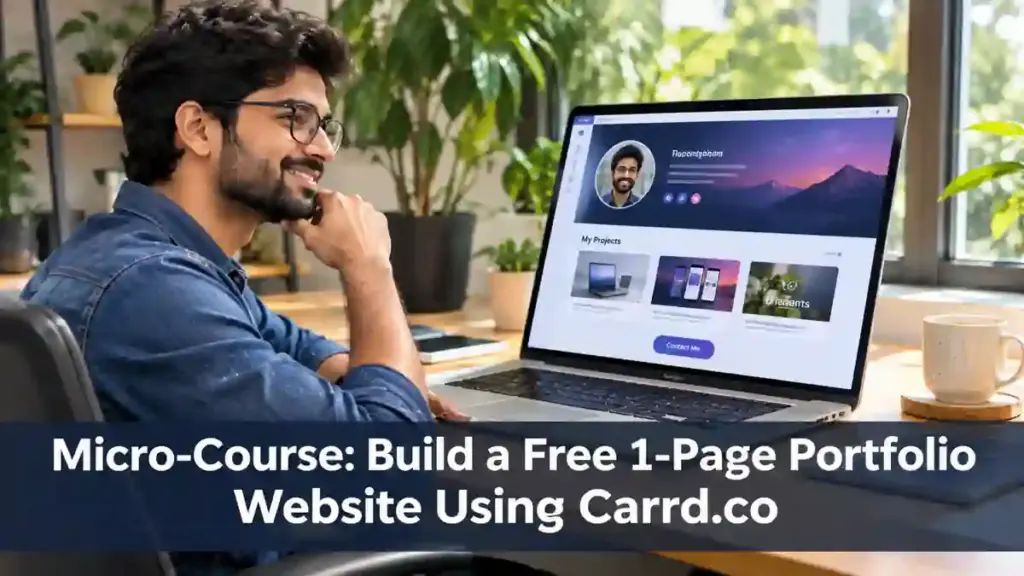
You can build a simple one-page portfolio with Carrd without writing code or paying for a subscription. Carrd’s official site says its free plan lets you build and publish up to three responsive sites using core features. It is useful for a student, freelancer, designer, developer or job seeker who needs one clear page to introduce themselves and show selected work.
The free plan has limits. Custom domains, forms, embeds, analytics and removal of Carrd branding are Pro features, so plan your page around what the free tier actually supports. Check the official Carrd site for current plan details before publishing.
What your one-page portfolio should include
Keep the page focused. A visitor should understand who you are, what you do, see evidence of your work and know the next step within a short scroll.
- Hero: your name, role and a one-sentence value statement.
- About: two or three lines about your skills and the type of work you want.
- Projects: two to four strong examples, each with a problem, your contribution and outcome.
- Skills or services: a short, specific list—not every tool you have ever tried.
- Contact: a professional email link and relevant profile links.
Step 1: Create a Carrd account and choose a starting point
- Visit Carrd.co and choose a template or start from a blank page.
- Select a layout that matches the goal. A designer may need visual project cards; a developer may need concise case studies and a GitHub link; a student may need projects, coursework and contact information.
- Use the preview to understand how the layout behaves on different screen sizes before adding content.
Step 2: Write a clear hero section
Replace generic text with a specific introduction. For example: “I’m Priya, a junior UI designer who creates clear mobile-first experiences for education and retail products.” A useful statement tells the visitor your role and the kind of problems you work on. Avoid unsupported claims such as “India’s No. 1 designer” or “guaranteed results.”
Choose one primary call to action, such as “View my projects” or “Email me.” Keep the wording direct and make sure the destination works. If the free plan does not support the form or embed you want, link to a contact method you control instead.
Step 3: Add projects that show your thinking
Two detailed projects can be more persuasive than ten thumbnails without context. For each project, explain:
- Goal: what problem or brief were you solving?
- Your role: what did you personally do?
- Process: what research, tools, decisions or iterations mattered?
- Outcome: what changed or what did you learn? Use measurable results only when you can substantiate them.
If you have no client work, use clearly labelled practice projects, volunteer work, coursework or self-initiated experiments. Do not present a concept project as a paid client engagement. For confidential work, get permission or remove identifying information.
Step 4: Keep the design readable
- Use one or two typefaces and a consistent spacing system.
- Keep text contrast strong and body text comfortably readable on a phone.
- Use images you own or are licensed to use; compress large images before uploading.
- Give meaningful images descriptive alternative text where the editor supports it.
- Do not rely on colour alone to communicate important information.
- Keep animations subtle and make sure they do not hide the content.
Step 5: Check the mobile version
Open the preview on a narrow screen. Check that headings wrap naturally, project cards remain legible, buttons are easy to tap, and no content extends beyond the viewport. Test links with both mouse and keyboard where possible. If your page contains a downloadable CV, make sure the file is current and does not expose private information such as a home address.
Step 6: Publish the free site
- Use Carrd’s publish workflow and choose an available Carrd subdomain.
- Check the final URL and open it in a private browser window to confirm that visitors can access it.
- Test every project link, social profile, email link and download.
- Share the portfolio URL on your CV, professional profiles and relevant applications.
On the free plan, expect to use a Carrd subdomain and retain Carrd branding. If you need a custom domain, contact/signup forms, third-party embeds or analytics, compare the current Pro plans and decide whether those features justify the cost. Do not buy a plan simply because you assume it is required to publish any page at all.
Step 7: Make the portfolio easier to discover
- Use a descriptive page title and a concise summary if the selected Carrd settings expose these fields.
- Include your name and professional focus in visible page text, not only in an image.
- Use clear project headings and descriptive link text such as “Read the checkout redesign case study.”
- Share the page from profiles you control and keep the links updated.
- Do not expect a new portfolio to rank immediately. Search visibility depends on discoverability, content, competition and other signals beyond the builder.
Common mistakes to avoid
- Writing a long biography before showing any work.
- Adding every project instead of selecting the strongest examples.
- Using stock imagery that makes the page look like someone else’s work.
- Linking to unfinished files, private documents or broken social profiles.
- Publishing placeholder copy such as “Lorem ipsum” or generic template text.
- Promising a contact form, custom domain or analytics before checking plan limits.
Launch checklist
- My role and offer are clear in the first screen.
- Each project explains my contribution, not just the final visual.
- All links, email buttons and downloads work.
- The page is readable on a phone and keyboard-accessible.
- I have permission to publish all text, images and project details.
- The published URL opens in a private browser window.
- I know which free-plan limitations apply to my page.
Frequently asked questions
Can I make a portfolio website for free with Carrd?
Yes. Carrd’s official site says the free plan supports up to three sites and its core features. Check current limits and terms before you start.
Can I use my own domain on the free plan?
Custom domains are listed as a Pro feature. The free plan is suitable for publishing to a Carrd subdomain; review current pricing if a custom domain is important.
Is Carrd suitable for a large portfolio?
It works best when a single, focused page is enough. If you need many case-study pages, a blog, complex navigation, a large CMS or advanced forms, compare a multi-page website platform.
Bottom line
A useful portfolio is not defined by how many effects it has. Choose a clear layout, explain your strongest projects, make the page easy to use on mobile and test every link before sharing it. Carrd’s free tier can be a practical starting point; upgrade only when a specific feature you need is outside the free plan.