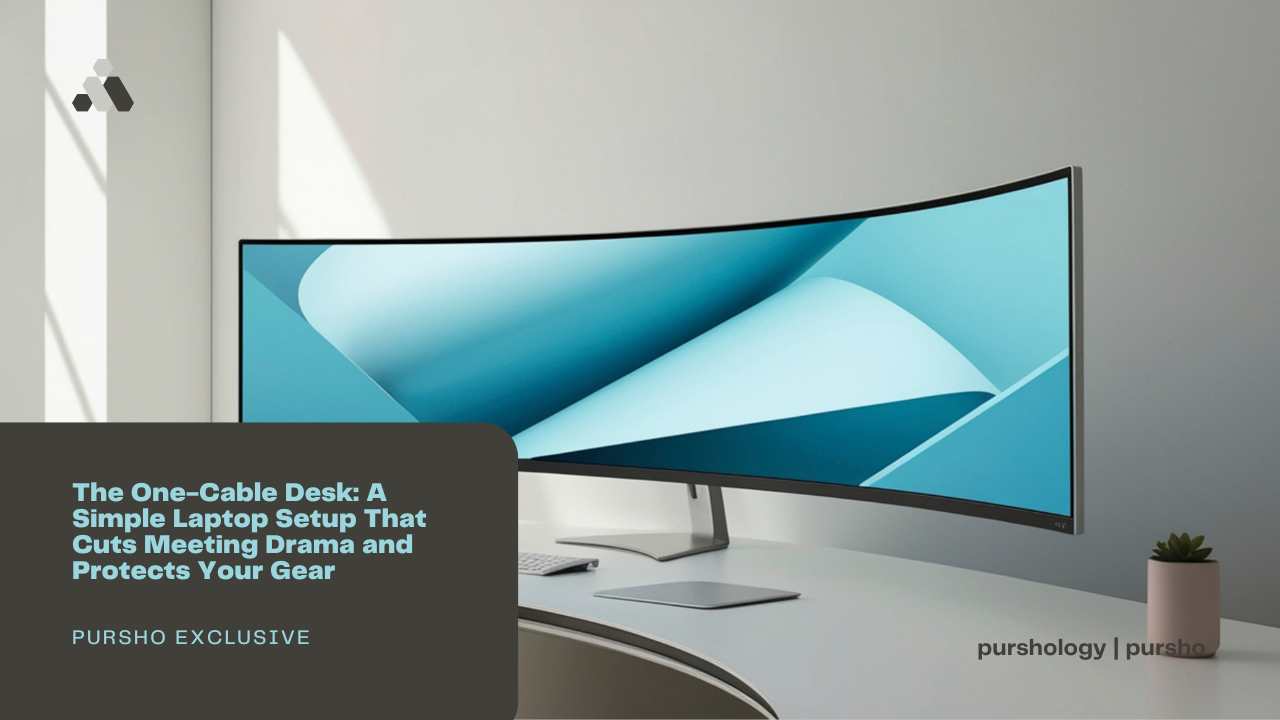
A messy desk slows you down. A one-cable desk—where a single USB-C cable connects power, display, internet, and peripherals—keeps things tidy, makes video calls stable, and reduces tech headaches. This guide explains the why and the how in plain English, with safety notes you can apply today. If you’re setting up a home workspace to run or scale an online store, a streamlined desk setup is just as important as your business plan. Entrepreneurs launching digital stores can also benefit from understanding the core foundations of eCommerce today success, especially when building systems that support daily operations.
1) Why one cable helps (beyond the neat look)
- Less fiddling, faster focus. One plug connects power, screen, keyboard/mouse, and internet through a USB-C/USB4 docking station that can carry power + data + video. Many docks also pass charging (e.g., 65W) while handling displays and USB devices over the same cable.
- Fewer points of failure. Fewer loose adapters = fewer random disconnects during calls.
- Easier hand-off. Hot-desk or WFH/office swaps become “plug once, work.”
2) Make calls stable: prefer wired for important meetings
Wi-Fi can be fast but unstable; video tools care about steady upload and low latency. For key calls, use Ethernet (a tiny USB-C-to-Ethernet dongle works on any modern laptop). Official guidance:

- Zoom suggests ~1.2 Mbps for 720p and ~3.8/3.0 Mbps up/down for 1080p.
- Google Meet recommends low latency (ideally <50 ms) and lists ~3.2–3.6 Mbps for HD scenarios.
- Microsoft Teams publishes per-endpoint bandwidth requirements and planning tips for good media quality.
Quick wins: if Ethernet isn’t possible, sit closer to the router, use 5 GHz Wi-Fi, and reduce obstacles.
3) Place the screen and chair for comfort (so you can focus longer)
Ergonomics reduces neck/shoulder strain and keeps you productive:
- Put the top of the monitor at or just below eye level, with the center ~15–20° below eye line.
- Keep elbows near the body and wrists straight; support your lower back; feet flat.
4) Cable sanity and power safety (important!)
- Route and label. Run cables along desk edges using Velcro ties; keep the docking station reachable but out of the “elbow zone.”
- Use a surge-protective device. Only surge protectors (a.k.a. SPDs/TVSS) guard against voltage spikes—plain strips don’t.
- Never “daisy-chain” power strips (plugging one strip into another). It violates safety codes and can overload circuits, creating a fire risk. Multiple safety bodies (NFPA/OSHA-aligned guidance) explicitly warn against it.
Tip: High-watt heaters, kettles, or AC units should go direct to the wall, not into strips.
5) Your one-cable desk, step by step (10–20 minutes)
- Pick the dock. Choose a USB-C/USB4 dock that supports: your monitor(s), Ethernet, a couple of USB-A ports, and laptop charging (Power Delivery).
- Mount the screen. Raise your monitor or place the laptop on a stand to reach eye level (see Section 3).
- Wire it once.
- Wall → surge protector → dock power brick.
- Dock → monitor (HDMI/DP), mouse/keyboard (USB), Ethernet to router.
- One cable to your laptop. That single USB-C handles power + display + peripherals.
- Tidy the cables. Use ties and keep the power strip off the floor; don’t chain strips.
6) Micro-tuning for video calls (set once, forget it)
- Set your app’s video resolution to match your link; HD needs more stable bandwidth. (Zoom/Meet/Teams publish their numbers.)
- Use hardware acceleration in the browser or app if available; if you see visual glitches, toggle and retest. (Vendors document this as a standard fix.)
- Add a USB webcam and a simple mic/headset if your laptop camera/speakers are noisy or echo-prone—both plug into the dock, so you never re-configure on meeting day.
7) Weekly 10-minute care (keeps things fast and safe)
- Dust and check airflow. Warm laptops and docks throttle more; a clean, ventilated desk keeps performance steady.
- Cable check. Re-tie any slack, verify nothing’s pulling on connectors.
- Power check. Feel the strip; if it’s hot, unplug, reduce load, and move heavy appliances to the wall. (Never chain strips.)
- Update your apps. Meeting tools and drivers ship fixes that reduce drops and improve A/V stability. (Vendors publish regular update guidance.)
Quick FAQ
Q: Do I need a pricey dock?
A: No. You just need the features you’ll use: charging (Power Delivery), the right display ports, a couple of USB ports, and Ethernet for stability.
Q: Is Wi-Fi enough for HD?
A: Often—but stability beats peak speed. If calls glitch, plug in Ethernet or lower video resolution to match your real-world bandwidth.
Q: What’s the fastest way to get this done today?
A: Order a USB-C dock + Ethernet adapter + stand (and a surge protector). Wire it once, then enjoy a one-plug workday. Example kits live here so you can compare parts:
TL;DR
A one-cable desk removes friction: one plug for power, screen, internet, and gear. Add Ethernet for stable calls, follow basic ergonomics to stay comfortable, and use surge protection—never daisy-chain strips. The result is a calmer desk, fewer tech issues, and smoother meetings.