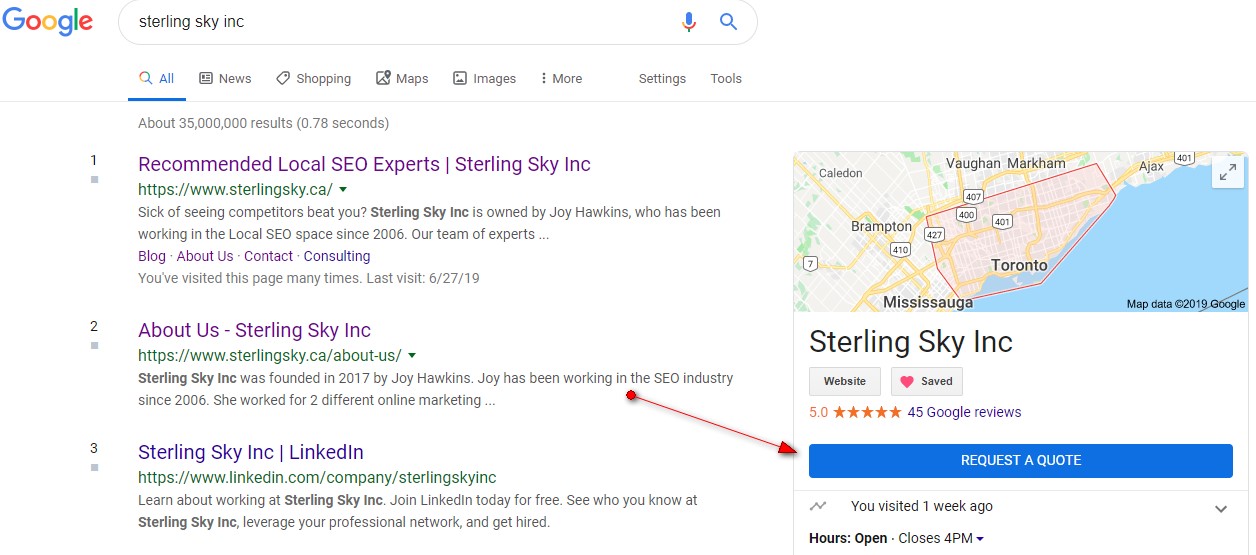

Google’s “Request a Quote” button in desktop search results. Click image to enlarge.
Google is making it easier for businesses to collect leads. A new “Request a Quote” button is appearing in Knowledge Panels, the boxes that display to the right of search results.
The button makes it easy for potential customers to engage with a business.
Google’s rationale for emphasizing this button presumably stems from its ongoing desire to integrate messaging with search. Consumers could already message businesses from the Knowledge Panel (an icon that said “Message”) and Google Maps (“Send a message” or “Contact us now”). Both were positioned next to the phone contact options.
The “Request a Quote” button is still rolling out. Only select searchers see it.
Reports are coming in that the button is visible on mobile and desktop results. On desktop results, the button is a striking blue and extends the full width of the Knowledge Panel.
Whether you see the button depends on:
- Searching a business name that triggers a Knowledge Panel.
- Google exposing the button for that particular search.
- The business enabling the button.
Get Your Button
Businesses can enable the button by turning on messaging in their Google My Business profile. If you don’t have a profile, sign up. It’s an essential local search element, enabling you to manage the business details that determine when you show up in Google Maps, manage your customer reviews, and influence searchers’ decisions to work with you.
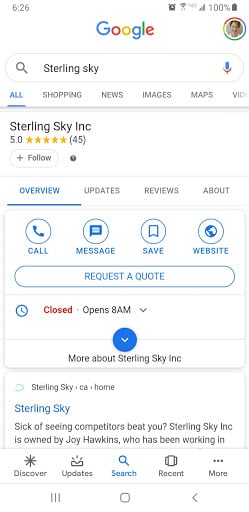
Google’s “Request a Quote” button in mobile search results.
In the Google My Business app, choose the “Location” you want to enable, then select “Customers,” then “Messages,” and tap “Turn on.”
I experienced a one-day lag between the time I enabled messaging for a business, and when the button appeared in the Knowledge Panel for my search.
Google’s instructions steer you to the Google My Business app, which is available for Android and iOS devices. But you can also check messages on the web-based alternative. This is handy for businesses that don’t want to use mobile devices.
Since enabling messaging in your Knowledge Panel and in Google Maps also triggers the “Request a Quote” button, there doesn’t appear to be any way to separate the features at this point, to substitute “Send a message” instead of “Request a Quote.”
All users — customers and prospects — could conceivably use the messaging feature in Maps and the Knowledge Panel without needing a quote. Thus it seems odd to force the “Request a Quote” button for messaging, too.
Managing Messages
Before you enable messaging, though, think about how you’ll handle the dialog on that channel.
- Who will answer the messages?
- What hours will you support?
- Will the hours extend beyond phone and email support times?
- How quickly must you respond?
- Does the messaging dialog get handled faster than phone or email?
The answers will be unique for each business.
In general, have the same team or person that respond to phone and email requests also manage messaging, for consistency. These people already funnel support, information, and business development requests to the right location.
More Volume?
The number of overall exchanges may increase since messaging is typically easier than picking up the phone or writing an email.
Be prepared to handle the increase in volume — good and bad leads. Businesses can then evaluate whether it’s a suitable channel. If not, they can turn the button off by disabling messaging.
Messaging through the Knowledge Panel and Google Maps comes with the ability to set an immediate, default reply. Use this response message to state when you’ll answer in person.
For most businesses, phone calls are more urgent than emails. Where does instant messaging fit? After phone and before email, or before phone and email? Instant messaging often involves extended pauses as people are distracted. Thus you’ll likely be able to multitask — answer the phone while you wait for the next message.
Current-year notes: changes, best practices, and considerations for the “Request a Quote” button (desktop)
### Product naming and set-up may differ from older instructions
Google largely transitioned from **Google My Business** to the **Google Business Profile** experience. If you don’t see the same menus described in older guides (e.g., “Customers” → “Messages” inside a mobile app), that’s why. In many cases, messaging-related settings are now managed directly in **Google Search** (by searching your business name while signed in) or in **Google Maps** via your Business Profile dashboard.
### Visibility and wording can be inconsistent—and may be Google-controlled
The call-to-action shown in the Knowledge Panel can vary by business category, user, device, and experiment group. In some cases you may see “Request a quote,” in others a different action (call, message, get a quote, etc.). Treat the desktop button as **Google’s UI choice** rather than something you can always fully control or “lock” to a specific label.
### Treat it like a lead channel with SLAs, not just “messages”
If “Request a Quote” routes into a messaging-style workflow, it will often create an expectation of **fast response times**. Best practice is to define a simple internal SLA:
– Who owns replies (role + backup)?
– Target first-response time (e.g., within 1 business hour)
– What hours the channel is monitored
– What qualifies as a “sales quote” vs. general support vs. spam
If you can’t reliably meet your own SLA, it’s better to disable the feature than to leave prospects waiting.
### Build a lightweight intake script to improve lead quality
To reduce back-and-forth and filter weak leads, prepare a short checklist your team consistently asks for in the first reply (tailor by industry), such as:
– What service/product is needed?
– Location / service area details
– Desired timeline
– Budget range (optional but helpful)
– Best way to follow up (phone/email)
This keeps the exchange efficient and helps you move the conversation off-platform when appropriate.
### Use the auto-reply strategically (set expectations and next steps)
If an automatic/default reply is available, use it to:
– Confirm you received the request
– State typical response time and hours
– Ask for the key details you need to quote
– Provide an alternate urgent contact method (phone) if applicable
This reduces frustration when messages arrive outside business hours and improves conversion.
### Track outcomes, not just message volume
Treat “Request a Quote” as a measurable lead source:
– Tag/record leads that originated from the Knowledge Panel button
– Watch for changes in lead volume and lead quality
– Compare close rates vs. calls, email, and form submissions
If it generates lots of low-quality inquiries, consider tightening your intake questions, response template, and qualification process—or disable it.
### Review privacy/compliance and record-keeping
Messaging-based leads can introduce compliance and retention needs (especially in regulated industries). Consider:
– Whether staff should avoid collecting sensitive information in chat
– How conversations are documented in your CRM/job system
– Internal guidelines on what to share (pricing ranges vs. firm quotes)
### Keep your profile optimized so the button works harder
Even if the button appears, users still evaluate credibility quickly. Keep evergreen profile basics strong:
– Accurate categories and services
– Up-to-date hours (including holidays)
– Photos and recent updates
– Review responses and reputation management
These often have as much impact on conversion as the presence of the button itself.